IPTV Setup Guide & Troubleshooting
Follow this IPTV setup guide to install your player, add your subscription and test playback. Choose your device for the installation steps, then open the relevant troubleshooting answer if something fails.
Updated 6 October 2026 · Prepared by WatchNest · Based on device and player documentation. Menu names vary by model and app version; WatchNest package compatibility still needs confirmation for your exact player.
Your device model, the exact player name and the streaming details from your activation message. Stop other streams while setting up a one-connection account. A player licence unlocks the app; it does not supply your channels.
Find the right fix first
The app will not open
Repair the app or device first. Re-entering the subscription does not fix a crash at launch.
Choose your device tutorial ↑Login or playlist import fails
Match the account format and fields before changing playback settings.
Fix a login or playlist error →Channels load, playback fails
Compare one failing item with a working item to narrow down the cause.
Run the playback checks →Samsung Smart TV IPTV setup — Tizen
Use the TV’s own Apps store. Samsung Tizen does not install Android APKs. If your confirmed player is IBO Player, finish installation here and follow its playlist tutorial below.
Step-by-step setup
- Turn on the TV and open another internet app to confirm the connection works.
- Press Home → Apps → Search. Enter the exact player name. Sign in to your Samsung account if requested.
- Open the matching listing, check its developer, choose Install, then Open. If it is missing, use the first troubleshooting answer below.
- For a MAC/device-key player, leave its device-information screen open and follow IBO Player playlist setup. For a login or M3U player, follow the matching account method.
- After saving the account, reopen the player so it can load the library. Select a live channel; then stop it and test a second channel and a movie if your package includes VOD.
Check it worked: The library appears and both picture and sound play on the selected items. Seeing the channel names alone does not complete setup.
Fix a problem on this device
Samsung: the player is not in Apps
- Confirm the exact TV model and the app name supplied by support; search in Apps rather than the TV’s web browser.
- Check the publisher’s supported Samsung models and your store country. App support can differ by model year and region.
- Use a confirmed Tizen alternative or a compatible external streaming device if this listing is unavailable. Do not use an Android APK as a Tizen installer.
Check it worked: A compatible app appears in the TV store. If none is available, the next step is a supported player/device choice, not a Smart Hub reset.
Samsung: the app freezes or will not launch
- Cold boot the TV: turn it off, unplug it for 30 seconds, reconnect power and open the app again.
- Check Settings → Support → Software Update → Update Now, where available on your model, and install an available update.
- If only this app fails, save the account details and use the model’s app-management controls to reinstall it. Re-enter the account afterward if needed. Reserve Smart Hub reset for Samsung’s model-specific last-resort instructions.
Check it worked: The app opens and accepts input. If it opens but a stream fails, move to the playback checks rather than resetting all TV apps.
Samsung: channel names load but there is a black screen
- Play a different channel and a lower-resolution version of the failed channel if your lineup has one.
- Test another internet video app on this TV. Stop this stream before testing the same channel on a second supported device.
- If the identical channel works on the other device but not this TV, report the TV model, player version and whether audio still plays. The stream format may need checking.
Check it worked: A working comparison shows whether the failure follows the channel or this TV/player. A codec mismatch cannot be fixed by repeatedly importing the playlist.
Device references: Samsung app installation · Samsung’s app repair steps.
LG Smart TV IPTV setup — webOS
Install a webOS player listed for your LG model and region. For an available IBO Player listing, use the MAC/device-key account route after installation.
Step-by-step setup
- Press Home. Open Apps on recent TVs or LG Content Store on older webOS models.
- Select Search, enter the confirmed player name and open its listing. Check the developer and sign in to your LG account if requested.
- Select Install; when it finishes, open the app from the Home launcher.
- Use IBO Player playlist setup if it shows a MAC address and Device Key. Otherwise, choose the matching login or M3U account method.
- Save the account or playlist, reopen the app, and test two channels separately. Test a movie separately if VOD is included.
Check it worked: The app reloads your saved library and plays video with sound. A paid app activation by itself will not create a lineup.
Fix a problem on this device
LG: the app is missing from the store
- Confirm the webOS model, player spelling and app publisher. A phone or Android TV listing does not establish webOS support.
- Check the TV’s service-country setting against your actual country and the vendor’s supported models. Do not change countries at random to force an app listing.
- Ask for a currently supported webOS player or use a compatible external streaming device if the app is unavailable.
Check it worked: The app is offered for your actual model and country before you buy its licence.
LG: the app freezes, crashes or will not load
- Check a second internet app. On webOS 6.0 and later, inspect Settings → All Settings → General → Network; older models use different paths.
- If only the player fails, check for its store update. Save the account details before deleting and reinstalling it.
- If multiple apps fail, compare the connection with another network, such as a short phone-hotspot test if your plan permits it. Retest the same item after each change.
Check it worked: If another network resolves the failure, investigate the home router or connection. If only one app still fails, give its version and error to the app’s support team.
LG: sound plays but the picture does not
- Try a second channel and an SD/HD version of the affected item if available.
- Stop the TV stream, then test the same item in a supported player on another device without exceeding your connection allowance.
- If the item only fails on this TV, report its model, webOS version and player version so support can check the stream format.
Check it worked: Playback on an alternate item separates a format-specific failure from a general account or network failure.
Device references: LG app installation · LG app and network troubleshooting.
Android TV & Google TV IPTV setup
Choose this tutorial when the model runs Android TV or Google TV. Sony, TCL, Hisense and Philips also sell models with other operating systems; check yours first. TiviMate is an Android TV player example, subject to your account’s supported format.
Step-by-step setup
- Complete the device’s network and Google account setup. Confirm that another video app works.
- On Google TV, use Search or the Apps tab to find the confirmed player. On Android TV, use Google Play Store.
- For TiviMate, use the Armobsoft FZE listing. Select Install and open the app.
- Open the player’s playlist/account setup. Follow the TiviMate account walkthrough or the matching instructions for your chosen player.
- Allow the initial library import to finish. Play one channel, stop it, and test a second channel and a VOD title if included.
- If your package supplies an EPG, open the guide and check a channel with confirmed programme coverage.
Check it worked: Playback has picture and sound; the saved playlist remains after reopening. EPG coverage is a separate check from successful channel playback.
Fix a problem on this device
Android / Google TV: the app crashes or the menu is stuck
- Open Settings → Apps, select the player, or select See all apps first. Choose Clear cache, then reopen it.
- If it still fails, restart Google TV through Settings → System → Restart. Retest before changing another setting.
- Check Settings → System → About → System update. Save account details before considering Clear data or a reinstall; Clear data removes the player’s local setup.
Check it worked: The player opens normally. If the failure occurs only during a specific stream, continue with playback troubleshooting rather than clearing the account again.
Android TV: the player is absent or says incompatible
- Check the TV’s operating system, the listing’s supported devices and the developer name.
- Use the TV version of the player. TiviMate’s developer states it is intended for Android TV and is not optimized for phones or tablets.
- If the app store does not offer it for this device, ask for a supported alternative. Do not assume that a mobile install proves TV compatibility.
Check it worked: The TV can install the appropriate remote-controlled app.
Google TV: importing the library feels very slow
- Leave the first import running and note whether the progress changes; repeatedly restarting it begins the work again.
- Restart the device, remove unused apps if storage is low, and reopen the player.
- If the player supports category selection, import fewer categories. If it fails on the same stage again, report that stage and the player version.
Check it worked: The import finishes and the menu responds. An import failure should be diagnosed before you adjust the video decoder.
Device references: Google TV app installation · Google TV cache, update and restart controls · TiviMate’s supported platform.
Amazon Fire TV Stick & Fire TV IPTV setup
Use an app compatible with your particular Fire TV model. Start with the Amazon Appstore; an Android TV download is not proof of support on every Fire TV device.
Step-by-step setup
- Connect the Fire TV to the internet. From Home, use Find → Search or the remote’s voice search.
- Search for the confirmed player, open its listing, check the publisher and select Get or Download. Open it after installation.
- If the player is not in the store, first confirm your device platform and the app vendor’s current installation route. TiviMate publishes its own Android TV download instructions; availability and compatibility still depend on your device.
- Add the account using TiviMate, Smarters or the matching playlist method. Keep server, username and password in their separate fields if the app uses an Xtream login.
- Wait for the library, test a live channel and then a movie if supplied. Stop other streams while testing a one-connection account.
Check it worked: The player loads its saved account and a test stream plays. If the app cannot install, resolve device/app compatibility before adding the account.
Fix a problem on this device
Fire TV: the player crashes or will not open
- Go to Settings → Applications → Manage Installed Applications → your player → Clear Cache. Reopen the player.
- Restart the device. Check system updates at Settings → My Fire TV or Devices & Software → About → Check for System Update.
- If the same app still fails, save its account details before Clear Data or reinstalling it. Clear Data resets the app’s local setup; it is different from clearing cache.
Check it worked: The app opens again. Test the same channel after each step so you know which change helped.
Fire TV Stick: buffering happens on Wi-Fi
- Stop downloads and other streams on the home network. Retest one affected channel, then a second channel.
- Compare a lower-resolution version if supplied. Move the device/router arrangement to improve the signal, or test a compatible Ethernet adapter if you already have one.
- Run the speed test on this connection at the time buffering happens. A phone’s good result across the room does not measure the stick’s Wi-Fi link.
Check it worked: Improvement over a better connection points toward local network conditions. If only one source still fails, report that item instead of replacing the player.
Fire TV: a tutorial’s Downloader code does not work
- Check that the code or download URL comes from the app’s own publisher and is current.
- Check the device operating system and the publisher’s platform requirements before following an Android installer tutorial.
- Use a store-listed or publisher-confirmed alternative if this device cannot run the app. Do not keep trying unrelated codes for similarly named players.
Check it worked: You have a confirmed installation route for this device; if not, stop at compatibility selection rather than entering credentials into another app.
Device references: Amazon app installation · Amazon cache/data controls · Amazon app-crash repair.
Apple TV HD & Apple TV 4K IPTV setup
Install the tvOS version of your confirmed player. An iPhone-only listing is not an Apple TV app. Third-generation Apple TV models cannot download new apps.
Step-by-step setup
- Open App Store → Search on Apple TV HD or 4K. Search for the exact player supported by your account.
- Check the developer and tvOS compatibility. Select Get or the displayed price and confirm the download with your Apple Account when asked.
- Open the player and choose its supported account method: Xtream login, M3U playlist, or its own device-key route.
- Enter the streaming account information from your activation message. Your Apple Account password is for the app store, not the IPTV login.
- Wait for the library and test two channels separately. Test local playback before attempting AirPlay.
Check it worked: The tvOS player plays the selected channel directly on Apple TV with picture and sound.
Fix a problem on this device
Apple TV: the IPTV app freezes
- Press the remote’s TV button twice, select the unresponsive app and swipe up on the clickpad/touch surface to quit it.
- Return Home, open the player and retest the same item.
- If it still freezes, use Settings → System → Restart, then retry. Save the account details before a later reinstall.
Check it worked: The app responds after reopening or restarting. If a single title still fails, compare another title before changing the device setup.
Apple TV: I cannot find App Store or the player
- Check the Apple TV generation. Third-generation Apple TV cannot install new apps; HD and 4K have an App Store.
- On HD/4K, check that the exact app supports tvOS and is available in your actual App Store region.
- Choose a supported tvOS alternative when the listing is absent; an iPhone-only app cannot be installed as a tvOS version.
Check it worked: The device and listing both support tvOS app installation.
Device references: Apple TV app installation · Apple TV force quit · Apple TV restart.
iPhone & iPad IPTV setup
Use an iOS/iPadOS player that supports the account format you received. The Smarters example below applies only when the exact installed app offers that format.
Step-by-step setup
- Open App Store → Search and find the confirmed player. Check its developer, compatibility and any separate app charge.
- Tap Get or the displayed price and authenticate the download. Open the app.
- Choose the Smarters account walkthrough when it matches your app, or use the matching account method. Paste the complete M3U URL or enter the separate Xtream fields.
- Load the library on Wi-Fi and test a channel directly on the phone/tablet first.
- For AirPlay, first confirm the player supports it. Put the phone and receiver on the same Wi-Fi network, select the receiver using the app’s AirPlay control and test the same item.
Check it worked: Local playback works first. AirPlay is a separate test and depends on the player, receiver and content.
Fix a problem on this device
iPhone / iPad: the player closes or gets stuck
- For an unresponsive app, open the app switcher and swipe up on the player’s preview. Reopen it.
- Restart the device if reopening does not help. In App Store, check your profile’s App Updates and update the player.
- Save account details before deleting and redownloading the app, which can remove its saved data.
Check it worked: The app opens and the same test item plays after the repair step.
iPhone / iPad: AirPlay shows a black screen or no audio
- Play the same item locally. If local playback fails, fix the account or stream first.
- Put both devices on the same Wi-Fi network, update their software and restart them. Verify the player supports this casting route.
- If only audio is missing, check volume and mute on both the phone/tablet and TV/receiver. Retest a second item.
Check it worked: Working local playback with failing AirPlay narrows the problem to casting support or receiver settings; it does not prove the subscription is inactive.
iPhone: playback works on Wi-Fi but not mobile data
- Open Settings → Cellular or Mobile Data. Check Cellular Data is on and that your player is allowed to use it.
- On a dual-SIM phone, verify the selected data line. Start one brief playback test only if your data allowance permits it.
- If mobile access still fails while Wi-Fi works, report the network comparison to support. Use the data usage calculator before longer tests.
Check it worked: The player is permitted to access mobile data and a short test confirms whether the failure follows that connection.
Device references: App Store installation · iPhone/iPad app repair · AirPlay troubleshooting · Cellular app permissions.
IPTV on computers & Android mobile
Choose your operating system below. VLC is a concrete M3U playback example for desktop; it does not use a three-field Xtream login or provide the same portal-style library as every IPTV player.
Windows PC IPTV setup — VLC M3U example
This route needs an active, authorized M3U playlist or playable stream URL. If you only received server, username and password, use a confirmed Xtream-compatible desktop player instead.
Step-by-step setup
- Get the Windows version from VideoLAN’s VLC website, install it and open VLC.
- Choose Media → Open Network Stream. The Network tab opens.
- Paste the complete supplied M3U/stream URL into the network URL field. Do not paste just a server hostname or an Xtream password.
- Select Play. If the URL contains a playlist, open VLC’s playlist view and select a channel; if it is a single stream, playback starts directly.
- Stop playback and test a second item if your playlist supplies one. Keep the URL private when sending screenshots.
Check it worked: VLC plays the supplied item with picture and sound. It is a useful playback test; missing portal categories or an EPG does not mean the stream import failed.
Fix a problem on this device
Windows / VLC: the URL cannot be opened
- Check the complete URL against your activation message, including its protocol and any supplied parameters. Remove copied spaces or line breaks without changing the URL itself.
- Confirm the account is active and close other streams. Reopen the same URL in VLC.
- If only an Xtream login was supplied, ask for a supported desktop login route rather than entering those fields into VLC’s network URL box.
Check it worked: A valid playable URL opens. If not, report the error privately; do not publish the credential-bearing URL.
Windows / VLC: there is picture but no sound
- Check VLC’s volume, mute and the computer’s selected audio output.
- Use Audio → Audio Track if alternative tracks are available, then replay the same item.
- Test another channel. If audio fails on just one item, send its name and the VLC version to support.
Check it worked: Audio on a comparison item separates output/volume problems from an item-specific audio format problem.
Device references: Official VLC download · VLC network stream instructions.
Mac IPTV setup — VLC M3U example
Use this example for a supplied M3U file or playable URL. A desktop player supporting Xtream is a separate route if you have only a server login.
Step-by-step setup
- Download the macOS version from VideoLAN and install/open VLC.
- If you received an M3U file, drag that file from Finder into the VLC window. Select a channel in the playlist if it contains multiple items.
- For a supplied URL, open VLC’s network-opening dialog from its File menu (normally Open Network on macOS), paste the complete URL and open it. Menu names can differ by VLC version.
- Allow the source to load. Test a second item separately and close other streams while testing a one-connection account.
- If a full IPTV library is required, use a confirmed macOS IPTV player and the account format that it supports.
Check it worked: The selected file or URL plays in VLC. A playable M3U test does not establish support for every provider portal feature.
Fix a problem on this device
Mac: the playlist imports but an item will not play
- Select a different item from the same playlist. Check whether the problem affects one item or every item.
- Verify the supplied source is still active and stop other account streams. Reopen the file or URL without editing its parameters.
- If one item still fails, report its name, error and player version. If all fail, run the account/source checks.
Check it worked: A working comparison item narrows the fault to the affected source; an imported list alone does not prove its streams are active.
Mac: the player will not install or open
- Verify the download came from the publisher and that its version supports your macOS release.
- Check the exact message before retrying. A damaged download and an unsupported OS require different fixes.
- Use the publisher’s current supported installer or an App Store player confirmed for your account. Ask the publisher about a security or signing error instead of disabling system protections.
Check it worked: A supported, verified app opens normally before you add the streaming account.
Device references: Official VLC download · VLC file/playlist and stream playback.
Android phone & tablet IPTV setup
Choose a touch-friendly player for Android phones/tablets. TiviMate’s developer describes it as an Android TV app rather than a phone/tablet interface.
Step-by-step setup
- Open Google Play Store and search for the exact mobile player confirmed for your account. Check the developer and supported device.
- Select Install and open the player. Choose its account or playlist import option.
- For a matching Smarters version, use the Smarters account tutorial. Otherwise, select the supplied Xtream or M3U method only if the player supports it.
- Load the library on Wi-Fi and test a live channel and another item separately.
- Test mobile-data playback only after checking your allowance; streaming uses data even when the app itself was free to install.
Check it worked: The phone/tablet loads the library and plays the chosen items locally. Casting needs separate support in both the player and receiver.
Fix a problem on this device
Android phone / tablet: the player crashes
- Open Settings → Apps → your player (or See all apps first) and use Force stop for the unresponsive app. Reopen it.
- If needed, use the app’s Storage & cache → Clear cache controls and retest. Menu labels vary by phone brand.
- Check Google Play updates and restart the phone. Save your account details before Clear storage/data or reinstalling; those steps may remove its local setup.
Check it worked: The app opens and the same test stream works. Use only one repair step at a time.
Android mobile: playback works on Wi-Fi but not cellular
- Confirm mobile data works in another app and that the player is allowed mobile data in this phone’s app/data settings.
- If Data Saver is enabled, check whether it is restricting the player; menu paths differ by phone manufacturer.
- Make a brief comparison test within your allowance, then report whether the same item works on Wi-Fi. Do not change every network setting at once.
Check it worked: The comparison identifies a connection-specific failure rather than an across-the-board login failure.
Device references: Google Android app troubleshooting · TiviMate platform note.
Add your subscription: choose the correct account format
Use the format supplied in your activation message and supported by the exact installed app. These are streaming-account details, not a reseller-panel login or your app-store password.
- Server + username + password
- Choose an Xtream login if your player supports it. Keep the server address and the two credentials in their own fields.
- One complete playlist URL or M3U file
- Choose M3U / URL / file import. A complete URL may contain account parameters; keep the entire supplied value private.
- MAC address + Device Key displayed by the player
- Use that player’s matching management portal. These identify the player device and are not the same as the streaming username/password.
Xtream login: enter the fields correctly
- In your confirmed player, choose its Xtream Codes / API login option, if present.
- Set the display name to WatchNest or another name of your choice. This label is not your streaming username.
- Copy the server address, username and password into their matching fields. Preserve the supplied protocol and port; do not add a guessed URL path.
- Save or sign in. Let the library load and test a live channel, then a VOD item if included.
Check it worked: Your account loads its library. If authentication fails, use the login checks below instead of changing video settings.
M3U playlist: import the full URL or file
- Choose the player’s M3U / playlist URL or file option. Choose URL when you received a link, and file when you received a saved M3U file.
- Enter a display name if requested, then paste the complete supplied URL or choose the supplied file.
- Save/import and allow it to finish. If guide data is supplied separately, add that EPG source using the player’s guide settings.
- Play two items separately. An M3U player may not show the same categorized VOD/series library as a portal-style player.
Check it worked: The playlist appears and its streams play. Import success and EPG availability are separate checks.
TiviMate account setup & guide fixes
Use the Android TV app from Armobsoft FZE. Its developer lists M3U, Xtream Codes and Stalker Portal support. Follow the supplied account format; this tutorial does not test your specific WatchNest package.
- Open TiviMate and choose its Add playlist option. For an additional playlist, look under its playlist settings; labels can vary by version.
- For Xtream Codes, enter the supplied server, username and password in separate fields. For M3U, enter the complete supplied playlist URL. Use Stalker only if that is the method supplied for this account.
- Continue through the import prompts, give the playlist a recognizable name and finish loading it.
- If you were supplied a separate EPG URL, add it in the app’s EPG source controls and assign it to this playlist. Do not substitute a random guide URL.
- Open the channel guide, play a channel with confirmed EPG coverage, then compare a second channel. A TiviMate Premium purchase unlocks app features rather than a channel subscription.
Check it worked: The saved playlist plays channels. Guide entries appear only where the account supplies matching EPG data.
TiviMate: every channel says “No information”
- Check the device date and timezone, then confirm that the account supplies EPG data.
- In TiviMate’s EPG/playlist settings, confirm the supplied source is enabled and assigned to the intended playlist. Request an EPG update using the controls in your app version.
- If the source downloads but only some channels remain blank, ask support whether those channel identifiers have guide coverage. If the update fails, record its exact error and time.
Check it worked: An enabled, assigned source produces entries for covered channels. Missing provider data cannot be repaired by reinstalling the TV.
TiviMate: a new account loads no channels
- Compare the selected import method with your activation message. A complete M3U URL belongs in the M3U route; three separate credentials belong in the Xtream route.
- Check copied spaces and the account’s active status. Close other streams and retry the import once.
- If the exact same account fails again, report the import error, selected method and app version privately. Do not buy another app licence as a login fix.
Check it worked: The account imports a library before you adjust buffering or decoder options.
Player references: Official TiviMate listing · TiviMate developer website.
Smarters account setup & EPG troubleshooting
“Smarters” names are used by several apps. Confirm the developer and version first. Use the sequence below only if its login screen offers the chosen format; labels such as Add User, Add Playlist or Login can differ.
- Open the installed app and choose its add-account / add-playlist option.
- If it offers an Xtream Codes login, enter a display name, the streaming username, password and server address in their matching fields.
- If it offers M3U / URL / file import, select URL for a supplied link or file for a supplied M3U file, then import the complete value.
- Save/sign in and allow the library to download. Open Live TV, or the equivalent channel section, and test an item.
- Refresh guide data using this version’s EPG controls when supplied. Test a VOD title separately if your package and chosen import method include it.
Check it worked: Login succeeds and test content plays. Features and availability differ between Smarters versions and store listings.
Smarters: login works but EPG does not
- Test a live channel first to confirm playback. Check the device clock and timezone.
- Use this app version’s guide-refresh control. If it has separate source settings, verify the provider-supplied guide is selected for this account.
- Compare one covered channel with one blank channel. Report partial coverage separately from an EPG-download error; include the exact app version.
Check it worked: The refresh fills covered channels. An unavailable guide source or missing channel data requires a provider check, not repeated account purchases.
Smarters: “invalid details” or “cannot connect”
- Check the chosen format and all fields against the activation message. Keep the display name separate from the actual streaming username.
- Remove leading/trailing spaces and preserve the supplied server address, protocol and port. Confirm the account is active and stop other streams.
- Retry once. If it still fails, report the exact error, version and account method through private support; omit the password from screenshots.
Check it worked: Successful authentication loads the account. If this app does not offer your supplied format, choose a confirmed compatible player.
Player reference: Smarters Pro’s format and platform guide. Store support for your exact model must still be confirmed.
IBO Player: add the playlist using MAC & Device Key
This route is for the IBO Player app whose screen points to iboplayer.com. IBOGOLD and similarly named players can use different management sites.
- Open IBO Player on the TV. Note the MAC Address and Device Key shown by the app.
- On your phone or computer, open the management address displayed by that app. For this IBO Player, the vendor’s page is Manage Playlists.
- Enter the displayed MAC Address and Device Key and complete the website’s login prompts yourself.
- In the playlist-management area, add your active, authorized playlist using the controls offered for that account. Give it a recognizable name and save it. For the current portal interface, use the vendor-linked video below.
- Close and reopen the TV app, select the saved playlist if prompted and test a live channel. Keep device keys and playlist URLs private.
Check it worked: The saved playlist is available on the TV and an item plays. App activation and playlist import are separate steps.
IBO Player: the portal rejects the device details
- Read the MAC and Device Key currently shown by the installed app, not an old screenshot.
- Check that the portal matches that exact app. Switching between Wi-Fi and Ethernet can change the MAC shown by IBO Player.
- Re-enter the current details privately. If still rejected, use the app vendor’s support with the exact app name/version rather than a similarly named portal.
Check it worked: The portal recognizes the current device before you upload a playlist.
IBO Player: app activation worked but there are no channels
- Confirm an active playlist has been saved for the current device in the matching portal.
- Reopen the TV app and select/reload the saved playlist using its controls.
- If names appear but playback fails, test a second item and use the shared playback checks. A player licence does not include channels.
Check it worked: A saved, active playlist supplies the library. Buying the app again will not supply missing content.
Player references: IBO Player FAQ · MAC / Device Key login screen · Vendor-linked tutorial playlist.
External video walkthroughs
Use these alongside the written steps. They are third-party device or player tutorials, not WatchNest activation videos. Interfaces may differ from your model and app version.
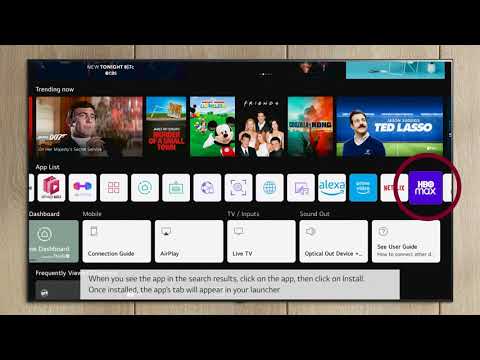 LG webOS · App-store setupUse the LG Content StoreVideo linked by LG USA Support · Watch on YouTube ↗
 Samsung · App navigationFind streaming apps on Samsung TVSamsung UK · General app overview, not IPTV login · Watch on YouTube ↗
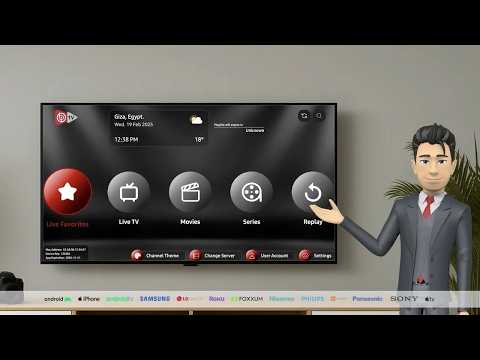 IBO Player · Playlist setupHow to use and activate IBO PlayerIBO Player Official · Linked by the app vendor · Watch on YouTube ↗
Videos open externally when selected. Follow the instructions for your exact app; an app activation does not activate a WatchNest subscription.
IPTV troubleshooting: login, EPG, buffering & playback
Change one thing at a time and replay the same test item afterward. These comparisons narrow down the problem; they do not prove a cause by themselves.
Invalid login, expired account or playlist import error
- Match the selected format to the activation message. Use the actual streaming credentials, not the reseller-panel login or app-store password.
- Check the server protocol/port, username/password spelling or the complete M3U URL. Remove copied spaces without changing the supplied values.
- Confirm account expiry and stop other streams. If the player still rejects it, note whether the error happens during login or after the library loads.
- Send the exact error and player version privately to support so the account status and supported format can be checked.
Check it worked: An active account authenticates and loads the library. Account errors should be fixed before playback settings are changed.
IPTV buffering, including buffering at night
- Test two channels and one movie if included. Note which items buffer and the time/timezone.
- Stop other streams, large downloads and cloud backups. Retest the same item without changing player settings.
- Compare Wi-Fi with Ethernet if supported, or improve the affected device’s Wi-Fi signal. Compare a lower-resolution version when available.
- Run the speed test at the problem time and use the bandwidth calculator to estimate concurrent demand.
- If the same item fails on a second supported device or another permitted connection, give those comparisons to support. Evening buffering alone does not establish ISP throttling.
Check it worked: A repeatable improvement identifies the next area to investigate. If only one item buffers across comparisons, request a check of that source.
The TV guide is blank or programme times are wrong
- Check the device date and timezone first. Test a channel for which support confirms EPG coverage.
- Check the player’s EPG source assignment and refresh the supplied source using its guide controls.
- If every entry has the same time shift, correct the device timezone before using any documented EPG offset. Avoid changing both at once.
- If only some channels remain blank after a successful update, report those channel names. If the update fails, report its exact error and time.
Check it worked: Covered channels show correctly timed entries. Missing provider data and an app-refresh failure are different problems.
Only one channel, movie or series episode fails
- Play a second item from the same category and an alternative resolution of the affected channel if supplied.
- Stop playback on the first device before testing the identical item on another supported device.
- Record the item name, category/episode, error and time. If the failure follows that item, request a source check rather than reinstalling every app.
Check it worked: A working comparison item confirms the whole library is not affected.
Playback stops when another screen starts
- Stop the other stream, including any multiview or recording session, and replay the first item.
- Compare the account’s allowed simultaneous connections with what is actually playing. Installed devices, app licence slots and live streaming connections are different limits.
- If playback works with one stream, confirm the correct connection allowance before testing additional screens.
Check it worked: One active stream plays without interruption; a connection-limit mismatch needs an account check rather than a cache reset.
Black screen, no sound or audio out of sync
- Check mute, volume and the selected audio output. Try another audio track if the player provides one.
- Test a different item and an alternate resolution of the same channel if supplied.
- Restart playback after each change. If a player offers documented decoder or audio-offset controls, record the original value and change only one setting; revert it if the test does not help.
- If the identical item works on another supported device, report the failing model/player version and whether picture or sound is missing.
Check it worked: Working comparison playback separates item/format problems from general volume or output settings.
What to send support after the tests
- List your device model, operating system, player name/version and exact error.
- Give the channel/title, time with timezone, and whether Wi-Fi or Ethernet was used.
- List the comparison results: other channel, other device, another permitted network, cache/restart and any changed setting.
- Remove passwords, playlist URLs, device keys and server credentials from screenshots. Send account-specific details only through an established private support channel.
Check it worked: Support can repeat the relevant checks without guessing which part of setup failed.
These are documentation-based tutorials and diagnostic steps, not a claim that every device, model or player has been tested with WatchNest. Availability, account formats and stream support depend on your package and the exact installed app.
WatchNest contact & useful links
WhatsApp +1 787 968 4471 · udealing@gmail.com
About WatchNest · Contact & support · Device setup guide · Privacy policy · Service terms · Refund policy
