WATCHNEST STREAMING GUIDE
IPTV Smarters EPG Not Working? Checks for App, Clock and Source
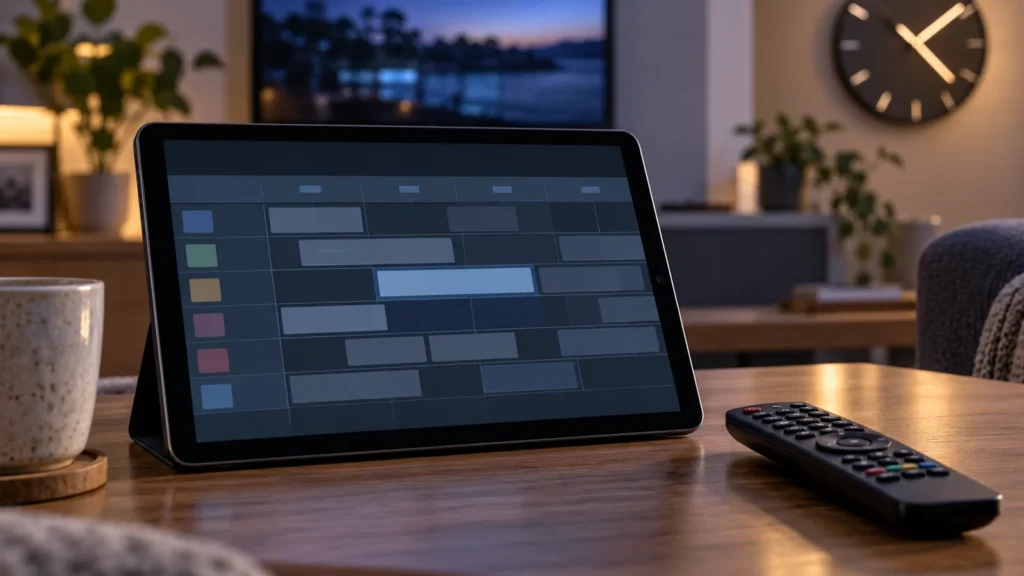
When IPTV Smarters EPG is not working or appears out of sync, first identify the exact app, publisher, platform and version. Several similarly named apps exist, and the controls can differ. Then classify the issue: no guide for any channel, missing entries for some channels, wrong programme times, or a guide download error. This narrows the cause before you change account settings.
Key takeaways
- “IPTV Smarters” alone does not identify one app build or menu layout.
- Check whether video works and whether the guide issue affects all or only some channels.
- Verify device date, time and timezone before trying an offset.
- Ask the provider whether your account source includes guide data; do not invent a guide URL.
On this page
IPTV Smarters EPG not working: identify the exact app
Open the app’s store listing or device app details and note the exact name, developer, platform and version. Smarters Pro’s vendor features page lists EPG support, but does not document how to refresh a guide or confirm that every app variant exposes the same controls. Its linked Google Play listing describes playlist formats without documenting EPG steps. A feature claim is not a repair workflow for every version.
Compare the product details with the Smarters Pro vendor site and the exact Google Play listing for Smarters Pro. If your app has another publisher, version or device type, use its own current help page. Do not install a different similarly named app just to follow a guide.
Classify what is missing
| What happens | First question to answer |
|---|---|
| No schedules appear anywhere | Does the source/account include guide data, and can the provider confirm it is active? |
| Some channels have a guide, others do not | Are the affected channels covered, and are their names matched to guide entries by the provider or app? |
| Listings appear at the wrong time | Is the device set to the correct date, time and local timezone? |
| Guide loads with an error | Does video still play, and is the error limited to guide data or affecting the whole account? |
These symptom groups are troubleshooting questions, not claims about a specific app’s internal error codes.
Check the device clock and guide coverage
Confirm the device’s date, time and timezone are correct and set automatically if that option is available. A wrong device clock can make schedules appear shifted even when guide entries exist. Avoid applying a random time offset: it can move correct listings farther from the local schedule and may mask a device clock issue.
Next, ask the provider whether the exact account source supplies guide information and whether the affected channels are covered. Keep the question narrow: identify whether all entries are absent or name only the affected channels. Do not post a private playlist address, login, device key or guide URL publicly.
Refresh only with instructions for your exact version
If the app has a documented guide refresh action, follow the instructions for that exact app and build. The public primary sources checked for this article do not establish a current EPG refresh control or its label across Smarters variants. Do not tap an unfamiliar option or clear app data based on a guide for another product.
If you can safely test the same authorized account in another compatible player, avoid running simultaneous streams if your subscription limits connections. A comparison may help separate app behavior from source coverage, but it does not prove which side is responsible. Stop playback in the first app before testing the second.
Prepare a useful support report
- Write the app’s exact store name, developer, platform and version.
- Record whether video works and whether the guide is blank, partly missing, shifted or showing an error.
- Check the device clock and timezone; include the timezone name, not a screenshot with private account details.
- Ask whether the plan/source includes guide data and whether the affected channels are covered.
- Share the error text privately with the provider. Redact account credentials, playlist links, MAC/device IDs and QR codes.
For broader device instructions, see the Smarters section of the WatchNest setup guide. If you need help with an account question, use the WatchNest contact page and describe the symptom without including passwords or private URLs.
Frequently asked questions
Does every Smarters app include an EPG?
Do not assume that every app with a similar name has the same functions. Check the listing and current help for the exact publisher and version. The Android TV listing cited here does not document EPG controls.
Should I change the EPG time offset?
Only follow provider or version-specific instructions after verifying the device clock and timezone. An arbitrary offset can make schedules less accurate.
Should I reinstall the app?
Reinstalling is not the first diagnostic step. First establish whether the guide data is included, whether video works, and whether the issue affects all entries or only some. Save any settings you may need before a reinstall recommended by official app support.
Research note: Product identity and documented formats were checked against the vendor site and linked app-store listing on 7 October 2026. Exact EPG support, controls and refresh steps remain unverified across Smarters variants.
