WATCHNEST STREAMING GUIDE
IPTV on Samsung Smart TV: App Availability & Setup Checks
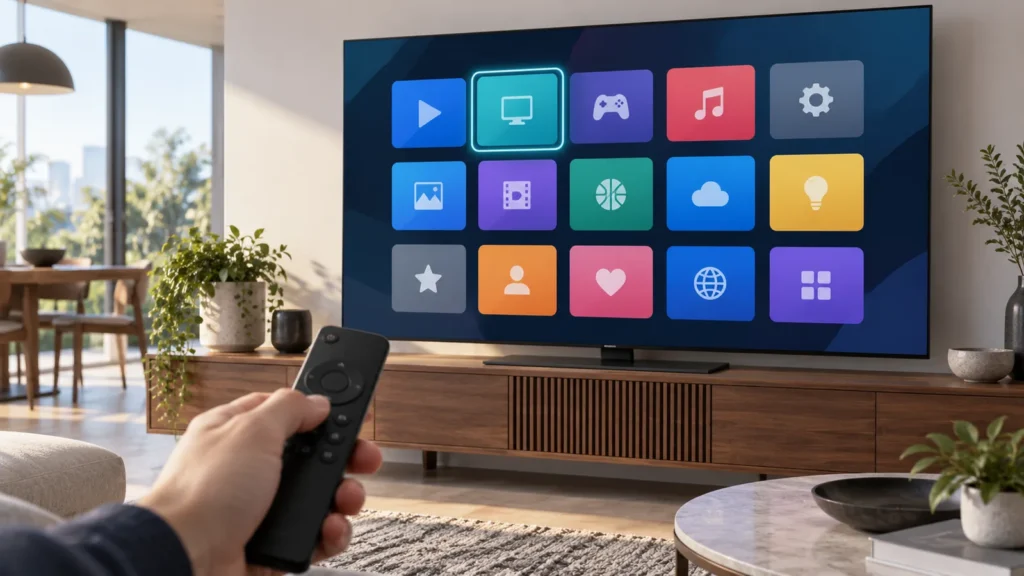
To learn how to set up IPTV on Samsung Smart TV models, first check the TV’s model, year, software and Samsung App Store region; app availability varies by model and region. Install only an app listed for that TV and region, verify its publisher, then enter the account format supplied by your authorized service. An Android TV APK is not a Samsung Tizen TV installation method.
Key takeaways
- Samsung’s app-install menus vary by model, software and region.
- An app missing from your TV’s store may not support that model or region.
- Confirm the player’s publisher and the account format before entering private details.
- Separate an app-store problem from a login, guide or playback problem.
On this page
How to set up IPTV on Samsung Smart TV: check app support
Find the full model code and software version in the TV’s settings before searching for a player. Smart TV apps are built for specific platform versions; Samsung’s developer documentation separates Tizen TV app support from older TV generations. Do not treat instructions for Android TV, Fire TV or a phone as instructions for a Samsung TV.
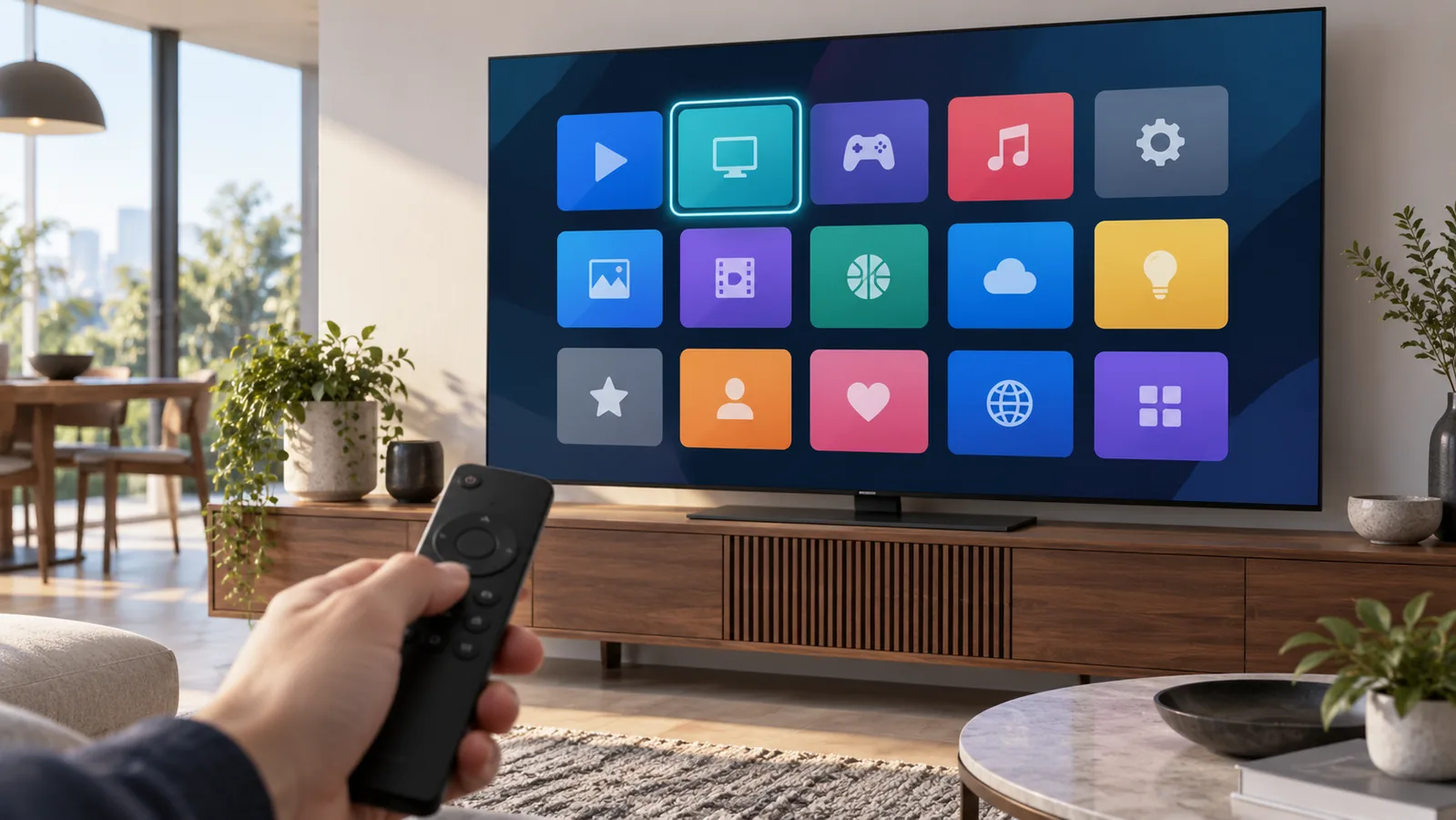
Samsung’s current Canada help page says Smart Hub downloads require a Samsung account and warns that menus differ by model and software. Its example flow is to open the Home screen, move to Search, select the matching app result, then choose Install and Open. This is Canada-specific guidance, not proof that the same app or menu is available in every country. Check the Samsung Canada app-install instructions and the Samsung TV platform support notes for your model.
Install the player from the TV’s app store
- Connect the TV to the internet and sign in to the Samsung account required by Smart Hub in your region.
- Open Apps or the TV’s app search, using the labels shown on your model.
- Search for the exact player name. Open its listing and check the developer or publisher against the app maker’s official information.
- If the listing is present and identifies the right product, choose Install, then Open.
- Use the account method issued by your provider. Do not choose M3U, portal, or separate username/password fields by guesswork.
Some app names are similar but have different publishers and platform builds. For example, the Smarters Pro vendor identifies separate Android TV and Samsung TV variants. Verify the Samsung listing itself; an Android TV store page does not prove Samsung compatibility. The Smarters Pro vendor site is a starting point for identifying the product, not a guarantee that it appears in your local Samsung store.
If the player does not appear in search
Check the TV model, software, store country and exact spelling. Samsung notes that an app not appearing can indicate model incompatibility. Do not install a random APK or use USB sideload instructions intended for another platform. If the app is unavailable, ask the app publisher which Samsung model families and regions it supports, or use an external device only if the player and provider support it.
Diagnose setup by symptom
| Symptom | Useful first check |
|---|---|
| App cannot be found | Confirm TV model/year, region and publisher listing. |
| App installs but login fails | Check account format, spelling, subscription status and provider instructions. |
| Login works but one stream fails | Try another permitted item and ask whether that item is included or currently available. |
| All playback buffers or stops | Check whether other apps and devices also have network trouble. A basic connection test can help isolate local network conditions, but it cannot certify a service stream. |
| Picture works but guide is empty | Ask the provider whether guide data is included and how the exact player version receives it. |
When reporting a fault, record the Samsung model code, TV software version, exact player publisher, app version, error wording and whether the issue affects one item or all playback. Do not send passwords, private playlist URLs, or device keys in a public post.
When to ask for help
Before changing the store country, factory-resetting the TV or reinstalling the app, confirm that your model and account format are supported. Those broader changes can affect unrelated TV settings. The Samsung section of the WatchNest setup guide and the contact page can help route a support question; include the model and error, not your credentials.
Frequently asked questions
Can I install an Android TV app on Samsung Tizen?
Do not assume that. Android TV and Samsung TV apps are different platform builds. Use the Samsung store listing for the exact TV or a publisher-confirmed supported route.
Why is a player available on one Samsung TV but not another?
Model year, software, product region and the app publisher’s device support can differ. Check all four before concluding the TV is broken.
Will this setup work with every IPTV provider?
No universal compatibility is established here. Confirm the exact TV model, player and account format with the provider before ordering or entering details.
Research note: Samsung’s cited menu example is for Canada and was reviewed 7 October 2026. Menu availability and app listings vary by TV, software and country. This guide has not been physically tested on every Samsung model.
